Start the connection again from your AI client, with https://app.flowsprite.com/api/mcp as the server address, and finish the FlowSprite sign-in in the browser it opens. Common causes are the wrong workspace, no MCP access in it, or an expired request. The sections below match each message to its fix.
The browser shows a message
| The page says | What to do |
|---|---|
| Sign in to continue | Sign in to FlowSprite. You come back to the same request. |
| This authorization request has expired | Requests are short-lived and single-use. If your client already shows FlowSprite as connected, close the window; otherwise start the connection again from the client. |
| Which workspace? | You have MCP access in more than one workspace. Choose the one this client should work in. |
| Create your workspace | You don't have a workspace yet. Name it and choose Create workspace, or see No workspace after sign-up?. |
| The MCP connection was refused because this account has no active MCP access. | See "No MCP access" below. |
| This workspace is suspended | Contact FlowSprite support. |
When the request reaches the approve screen, check the address under Sending your access to: it is where your access goes. Then choose Approve.
No MCP access
Whoever creates a workspace gets MCP access prepared for them. Members added later get it when their role has automatic MCP access turned on, which is the default for every role except Read-only. Otherwise a workspace admin has to grant it.
- If the Connect your AI assistant step on the Get started page shows the server URL, connect with it, then sign in and approve.
- If the step shows only Create a personal token, choose it. That turns your access on, also when an admin's setup link has expired (links last 24 hours). Then connect again.
- If it says "Ask a workspace admin to give you AI assistant access", do that. Admins grant it under Settings → MCP access.
The terminal login doesn't go through
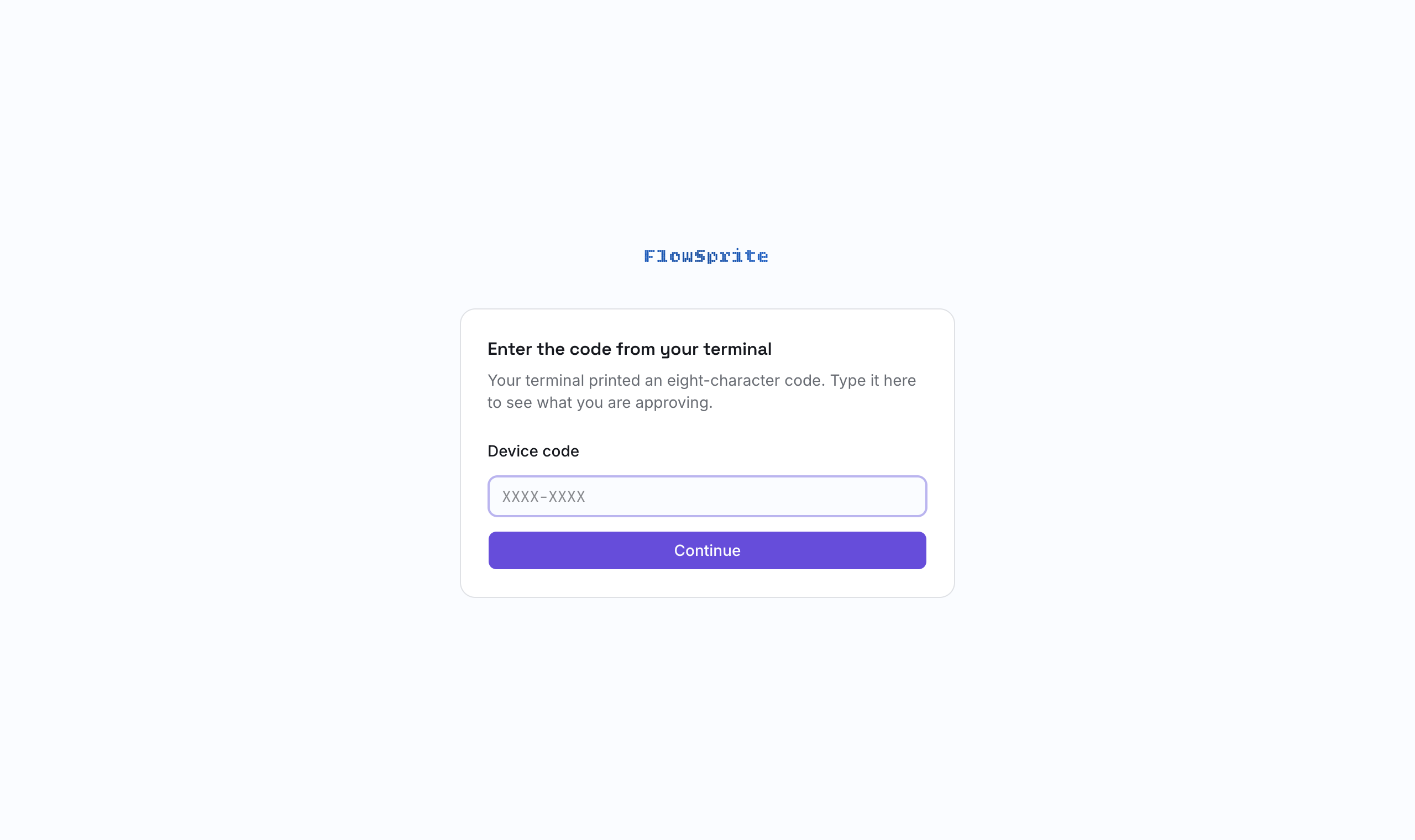
npx flowsprite prints a link and an eight-character code in the form XXXX-XXXX. Open the link, enter the code under Enter the code from your terminal and choose Continue. Check what you are approving, then choose Approve this login.
| You see | What to do |
|---|---|
| This login request has expired | Codes last 15 minutes. Run npx flowsprite login for a new one. |
| That code doesn't look right / We couldn't find that login request | Check you typed the code your terminal printed, or run npx flowsprite login again. |
| Too many codes tried | Wait fifteen minutes, then try again. |
| You don't have MCP access in this workspace | See "No MCP access" above. |
| flowsprite needs node 20 or newer | Install Node 20 or newer, then run npx flowsprite again. |
The terminal login uses the workspace that is active in your browser. To use another one, switch to it in FlowSprite first, then open the link again. npx flowsprite doctor checks Node and whether the endpoint still accepts your stored login.
A client with a token (Cursor and similar)
Clients configured with an mcpServers file send a fixed header instead of signing in. Put the personal token in the header as Authorization: Bearer followed by the token; never in the address. The token is shown only once, when you choose Create a personal token on the Get started page or open a setup link. If you lost it and can manage MCP access, use Re-issue setup link on your own access under Settings → MCP access and open the new link; otherwise ask a workspace admin to re-issue it. You can also run npx flowsprite and approve a new login.
If the client reports unauthorized (HTTP 401), FlowSprite didn't accept the credential. If it was mistyped or revoked, connect again. If that fails too, ask a workspace admin to check your membership and your MCP access; if the workspace is suspended, contact support.
Check it works
Ask your assistant to run FlowSprite's setup_status tool. If it answers with your setup checklist, the connection works. If a request fails, see When your assistant's first request fails.