On the Get started page, choose Add Salesforce Org, pick the kind of org, then choose Connect with Salesforce and sign in. Production connects read-only by default. A sandbox connects read/write for sync and deploy, and so does an org whose address contains .develop. or .trailblaze., such as a Developer Edition org.
Pick the kind of org
The Add a Salesforce org dialog offers three options:
| Option | Use it for | Access |
|---|---|---|
| Production, Developer Edition, or Agentforce (recommended) | Any org you sign in to at login.salesforce.com | Read-only, unless the address contains .develop. or .trailblaze.: then read/write |
| Production + Sandbox | A real Salesforce sandbox plus its production org | Sandbox: read/write. The second org: as above |
| Sandbox | Only a real Salesforce sandbox | Read/write |
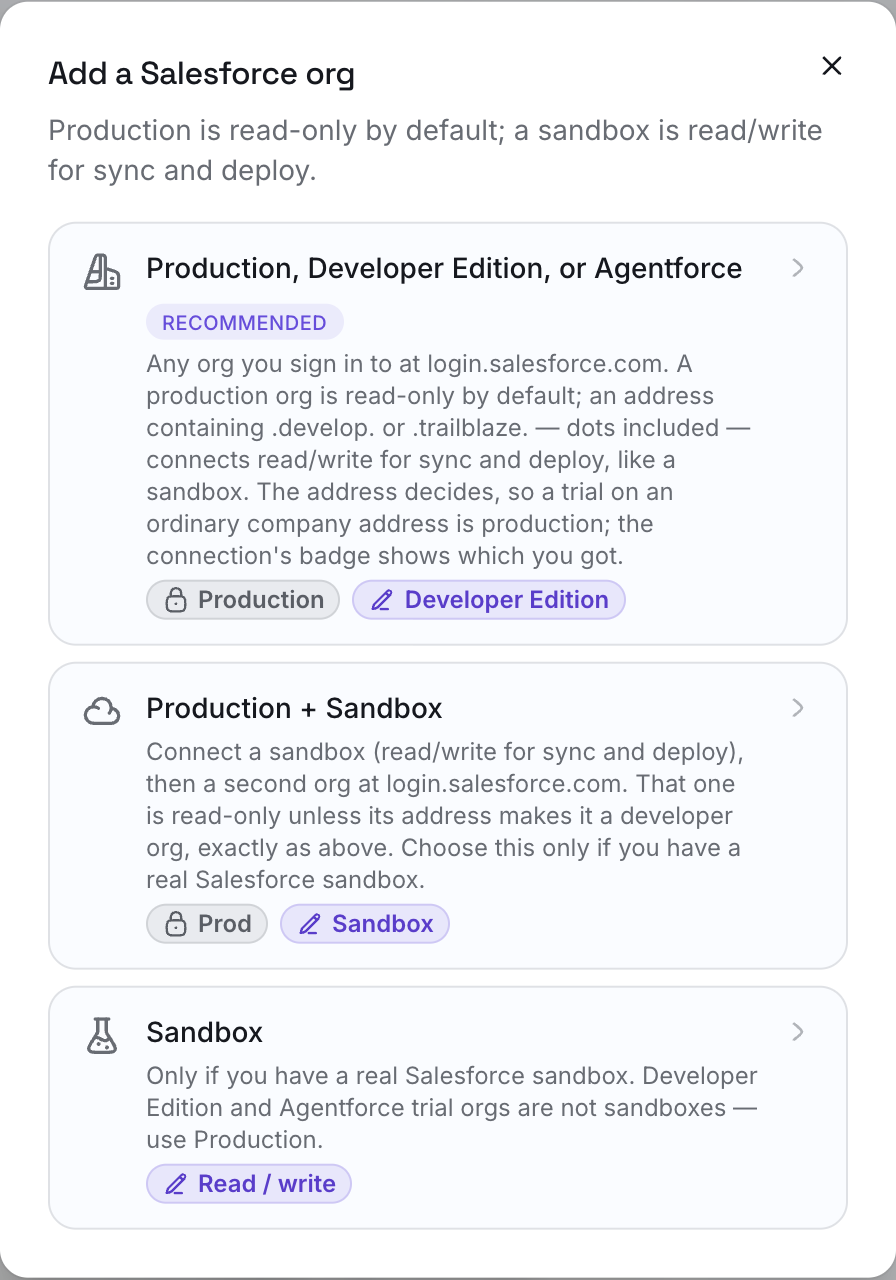
The org's address decides which access you get. An address containing .develop. or .trailblaze. (dots included) connects read/write like a sandbox. Anything else at login.salesforce.com is production, including a trial on an ordinary company address. The connection's badge shows which one you got.
Developer Edition and Agentforce trial orgs are not sandboxes and cannot sign in through test.salesforce.com. If you pick Sandbox for one, the dialog tells you to go back and choose Production.
Sign in
There are two sign-in methods.
Connect with Salesforce (recommended). You are sent to Salesforce to sign in, then back to FlowSprite. It works for every org, stays connected on its own, and avoids a forced reconnect when Salesforce retires username/password API login on June 1, 2027.
Before the first OAuth connection to an org, a Salesforce admin installs the FlowSprite package in it, once per org. The dialog links to the install under First time? Install FlowSprite in your org. A sandbox only carries the packages production had when the sandbox was created or last refreshed, so an older sandbox needs its own install.
If your org signs in through a custom domain, enter it under Custom login URL (My Domain) — optional, for example acme.my.salesforce.com.
Use username & password instead. Enter the Username, Password and, if your org requires one, the Security token. FlowSprite stores the login encrypted so it can sync without you. Use a dedicated API-only integration user without MFA. To revoke access later, rotate that user's Salesforce password.
After you connect
The org appears under Salesforce Orgs in the sidebar, and the Get started page offers its first analysis. See Run your first analysis.
Production stays read-only until an org admin turns on production deploys or record writes for that one connection, each separately, in the connection's settings. Both need Enterprise / Agency entitlement on the workspace. Why production starts read-only explains the defaults.
How many orgs you can connect
Each plan includes a number of connections: 6 on Professional and 20 on Enterprise / Agency. The included number is a hard cap with no overage, so a seventh org on Professional needs the larger plan.